AI-generated graphics have become increasingly popular, offering quick and creative solutions to everyone from designers to content creators, educators to researchers.
However, the output sometimes requires adjustments, especially for items with specific patterns, like the American flag.
Here, I will walk through a process to refine an AI-generated American flag star pattern, ensuring its stars are correctly placed, and the overall pattern is accurate.
Using Adobe Illustrator’s built-in text-to-vector generation tool, I created multiple versions of the American flag.
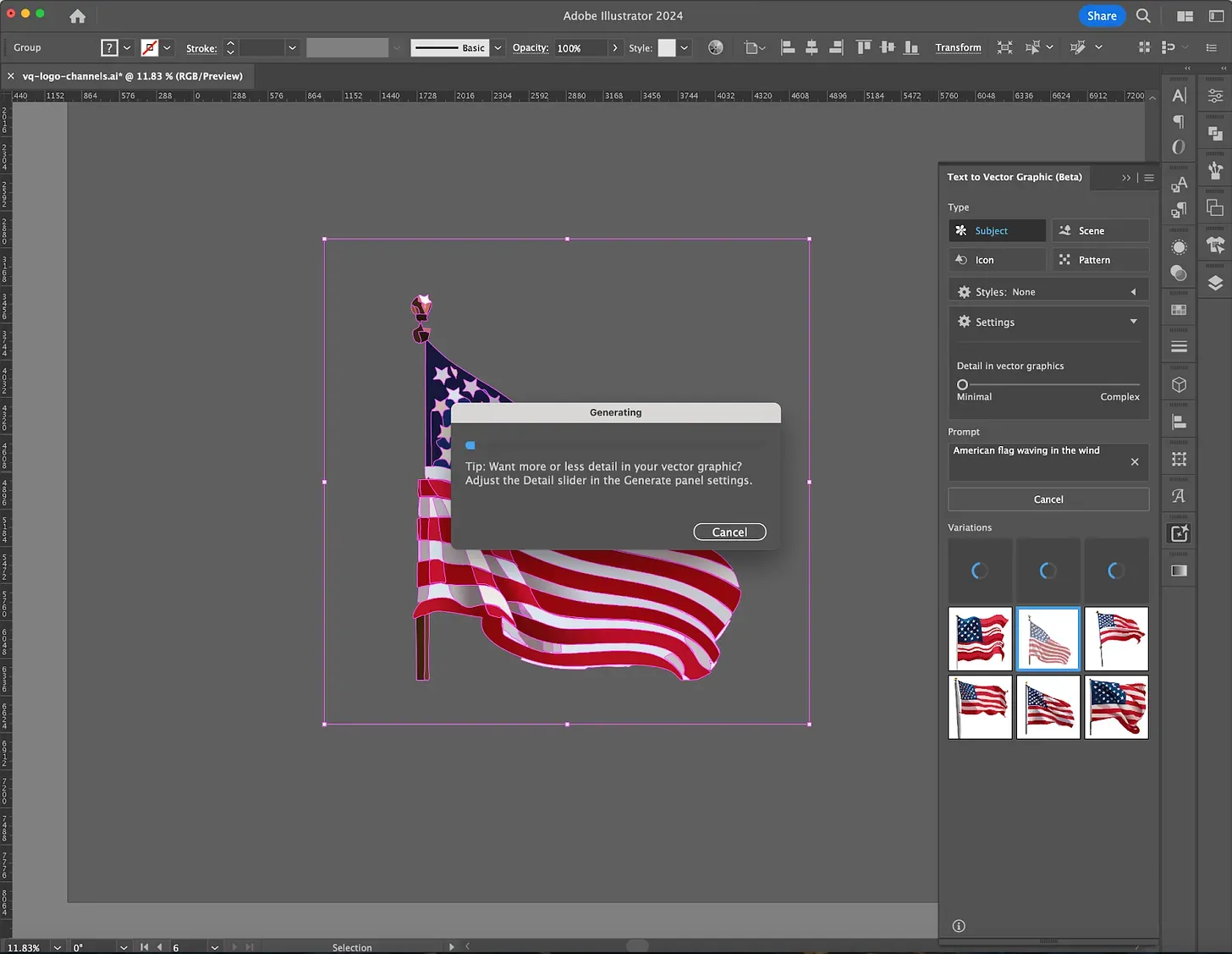
Prompt
American flag waving in the wind
Detail in vector graphics: Minimal
After reviewing several options, I selected one that closely matched the project requirements.
When assessing the generated flag, you can see that it looks good, but the stars were not well generated; they looked more like random shapes than stars.
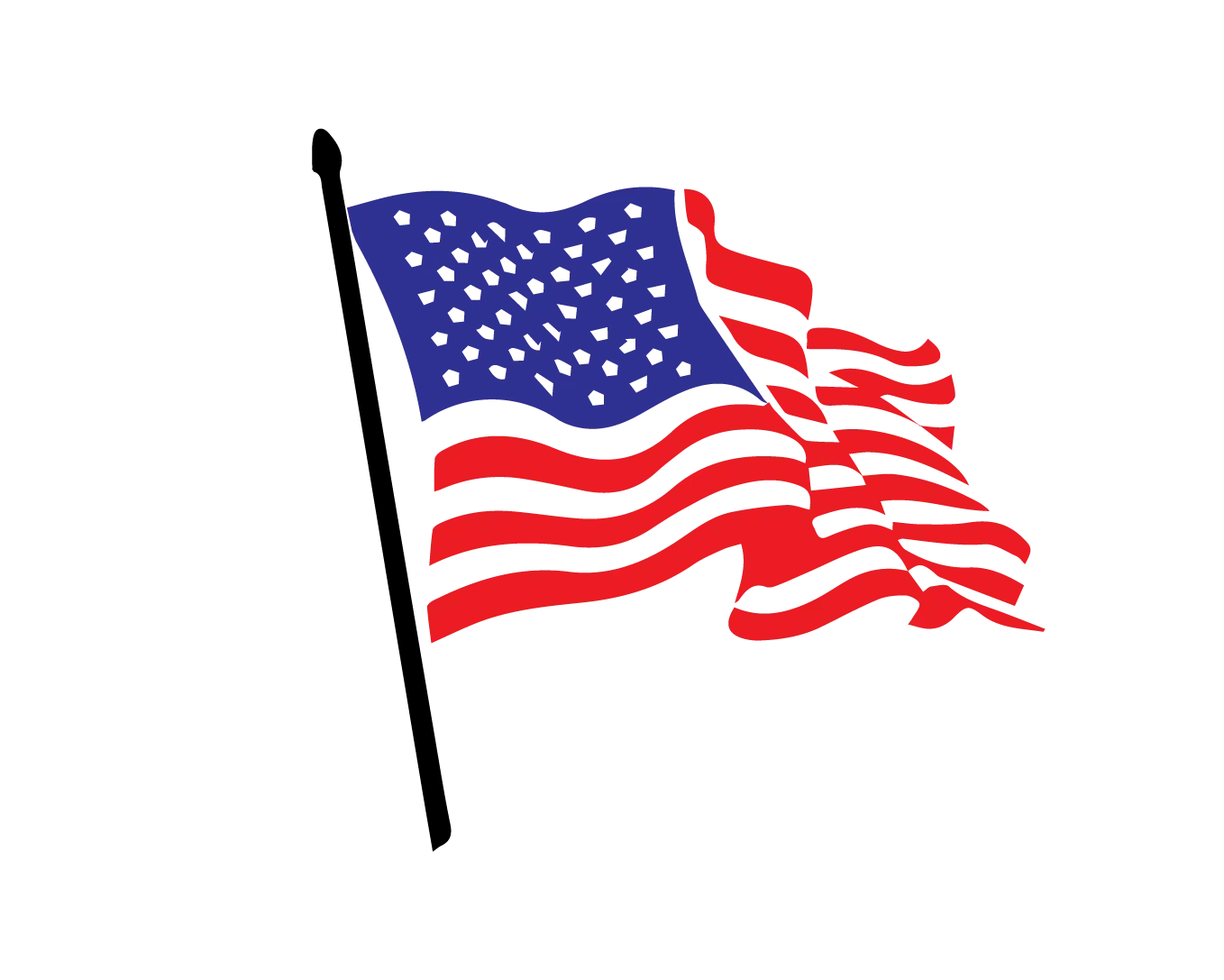
While this more abstract version of the flag may work for some projects, accuracy was crucial for this one.
Now, I could have kept generating the image to see if I could find one that was exactly what I needed. However, that can take a lot of time and several generations. So, I decided that using this image and fixing it was my best solution.
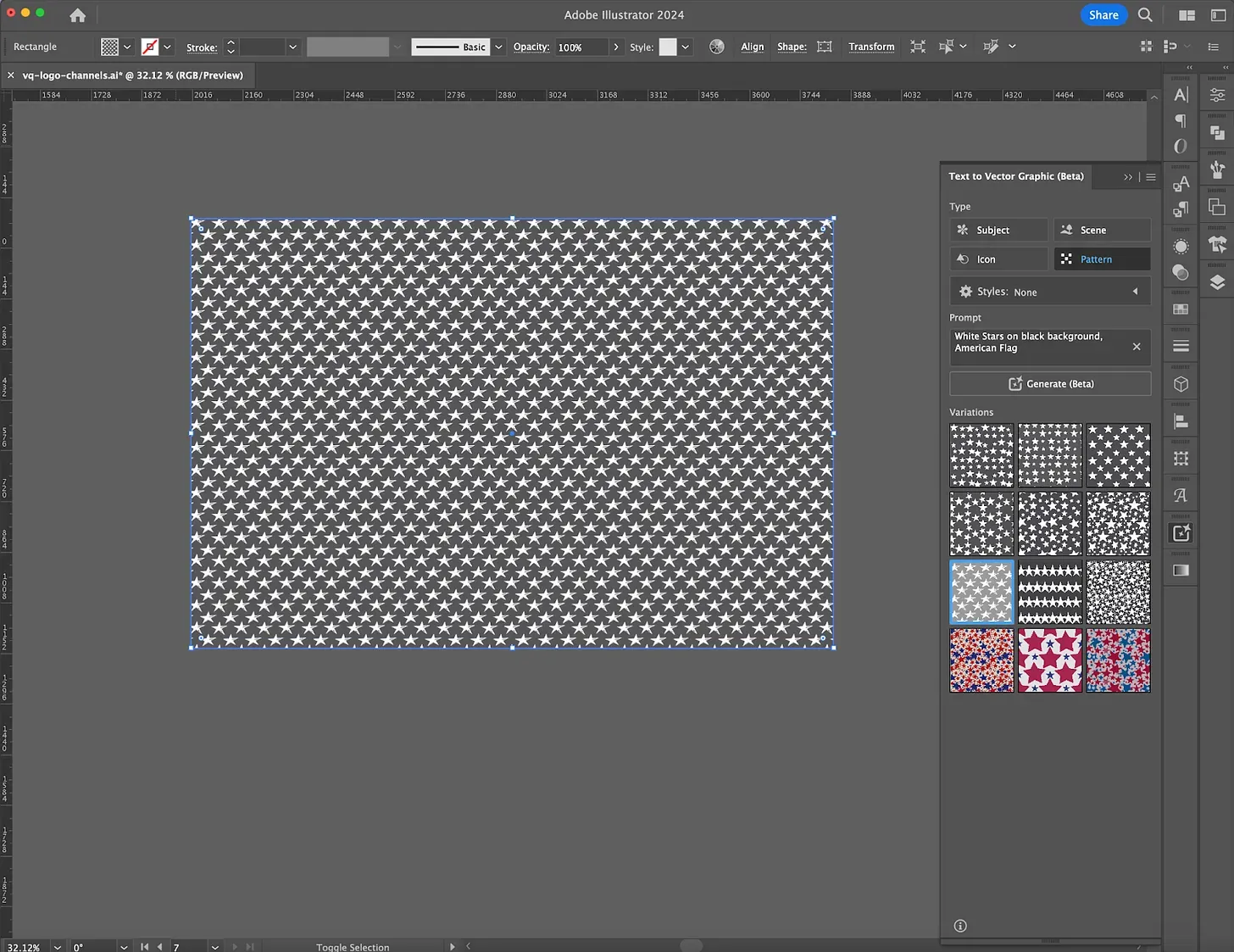
To save time, I generated the stars separately as a pattern. Adobe’s text-to-vector tool provides a setting for patterns, making it a logical starting point.
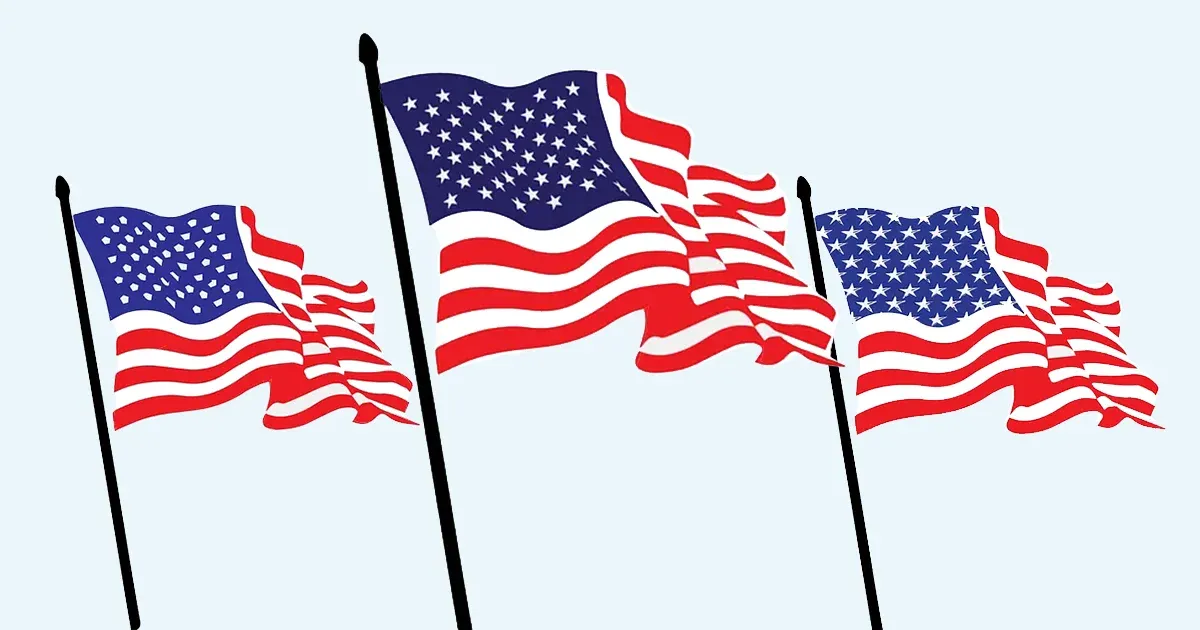
Using the AI-generated stars pattern within the flag, it is clear that those stars are not correctly positioned. While the stars look better than the originals, their placement doesn’t conform to the traditional layout of the flag, nor do they follow the shape and movement of the flag.
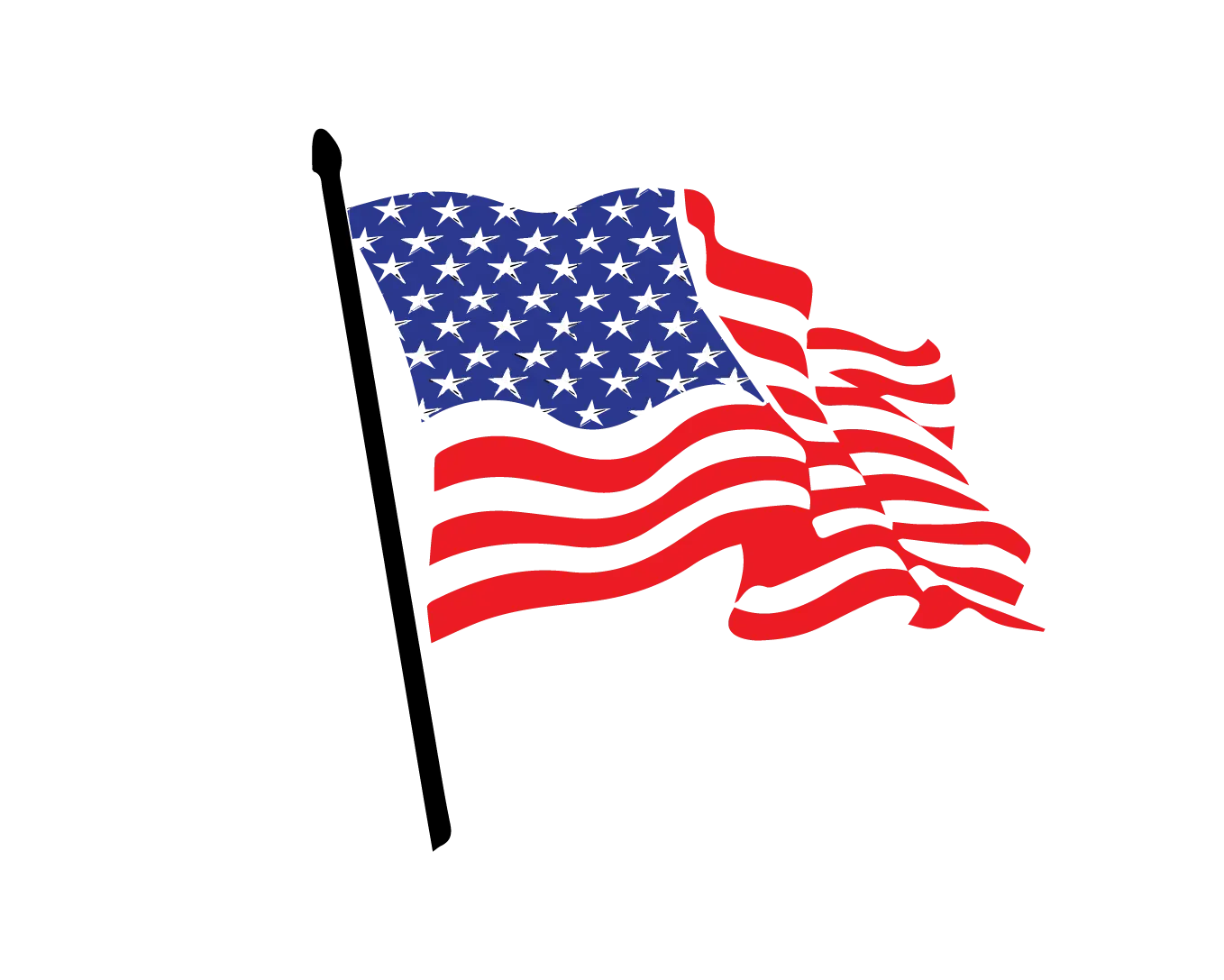
Another detail to consider is that the stars don’t match the style of the generated flag. They appear distressed rather than the flag’s precise graphic style.
What is helpful about the pattern ai-generation is that it creates a vector pattern using Adobe Illustrator’s pattern tool, allowing me to easily edit and modify the pattern to suit my needs.
I needed to find stars that would better suit the flag’s graphic style.
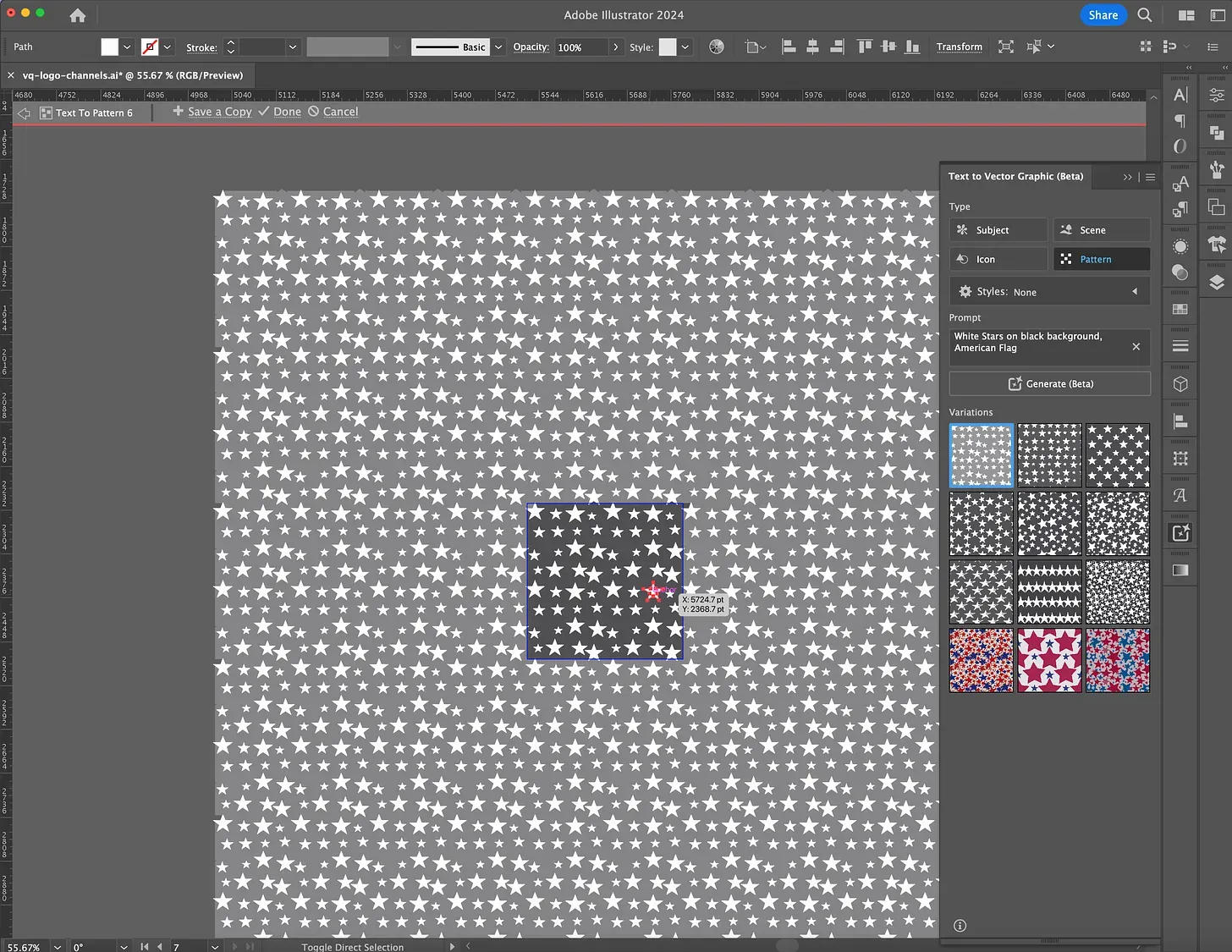
Notice I ignored the pattern in favor of the correct design style. Because I knew I could adjust this easily by selecting the star elements and deleting or repositioning them.
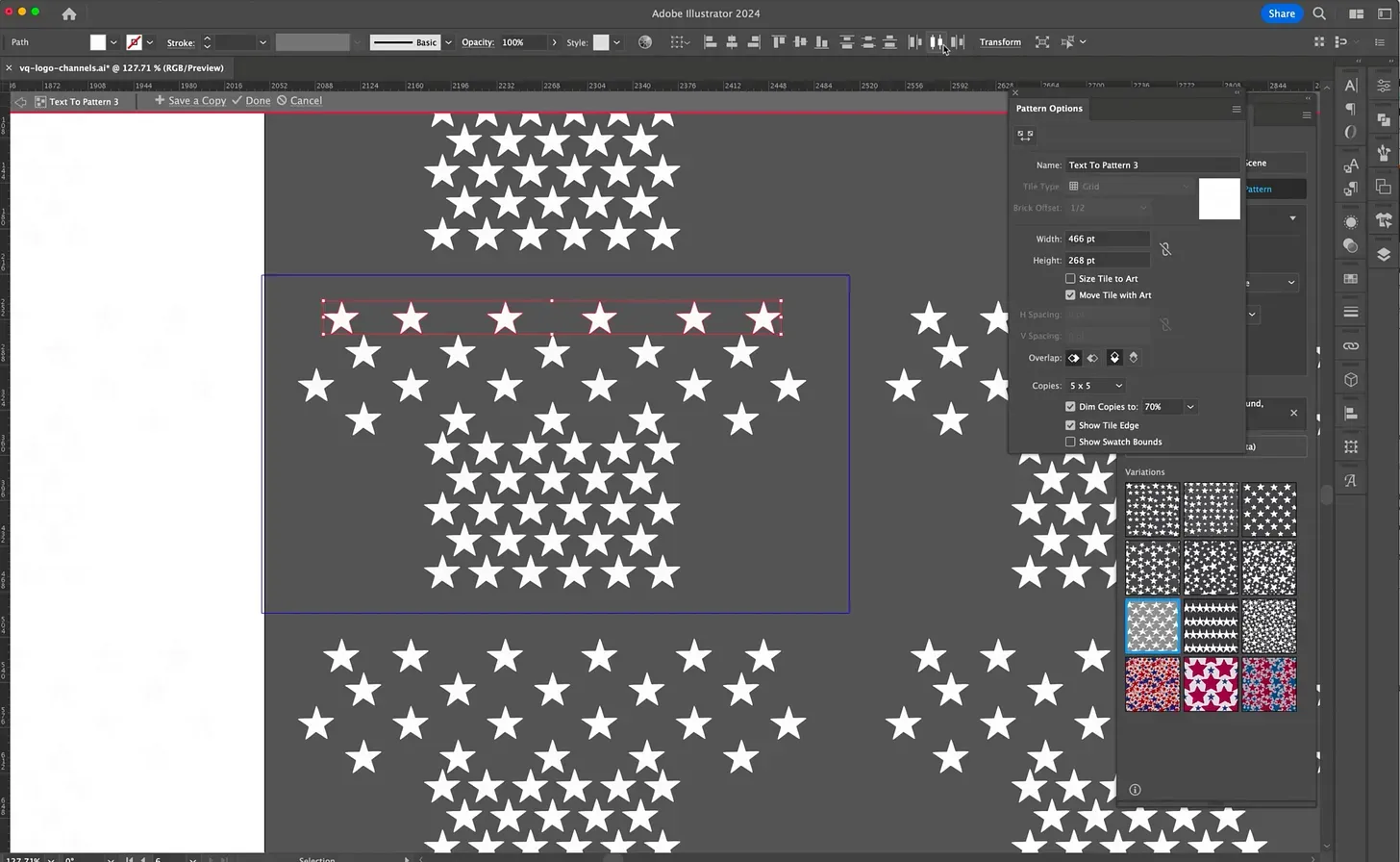
Adobe Illustrator allows for quick modifications to patterns without focusing on each pixel. I used the align tool to ensure the stars were consistently placed throughout the pattern.
After adjusting the pattern, I group the stars and copy and paste them into the main art board. I don’t just use the pattern as is because I want the graphic to actually work with the flag’s bends and folds. A pattern will just fill the space, not conform to it.
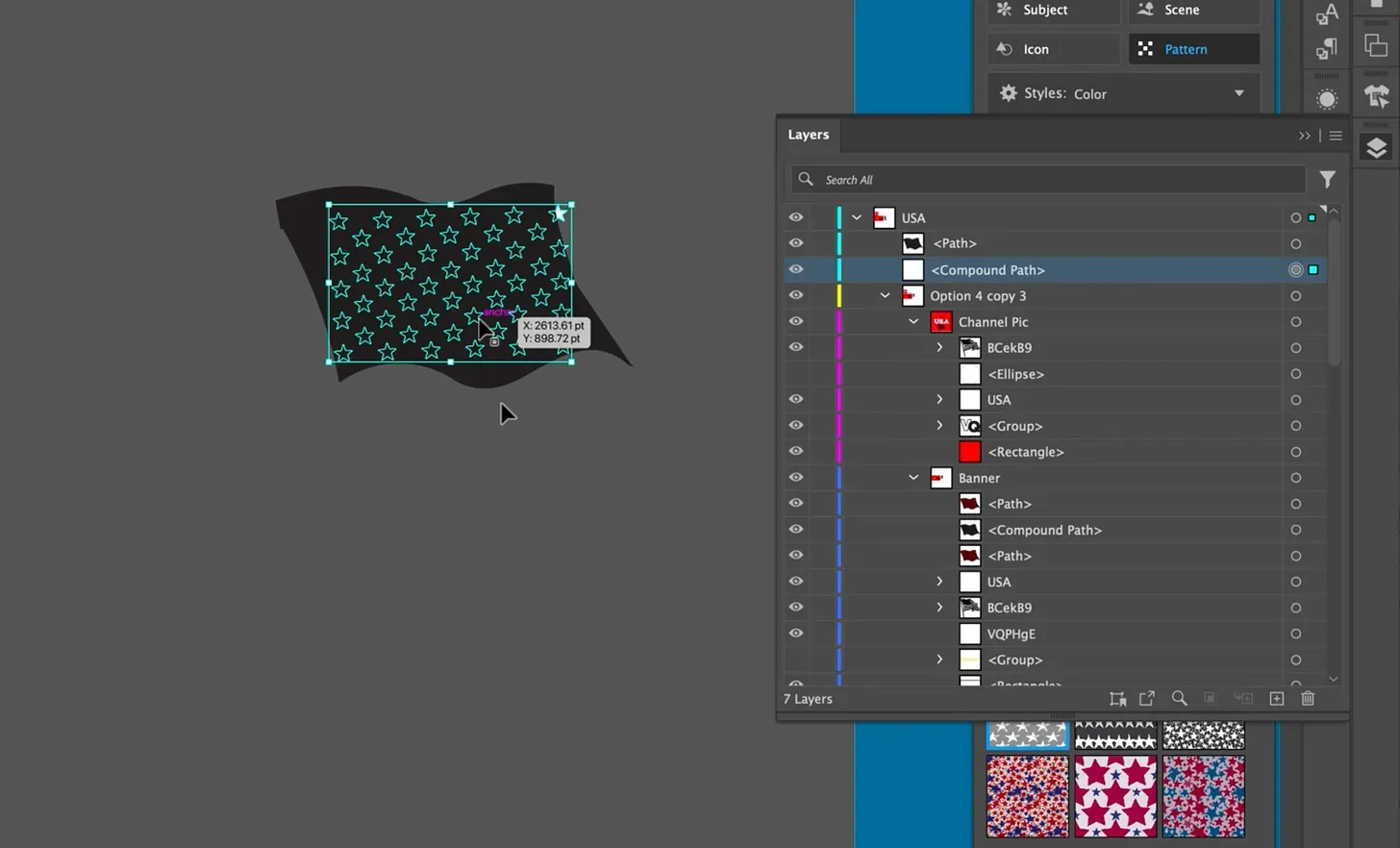
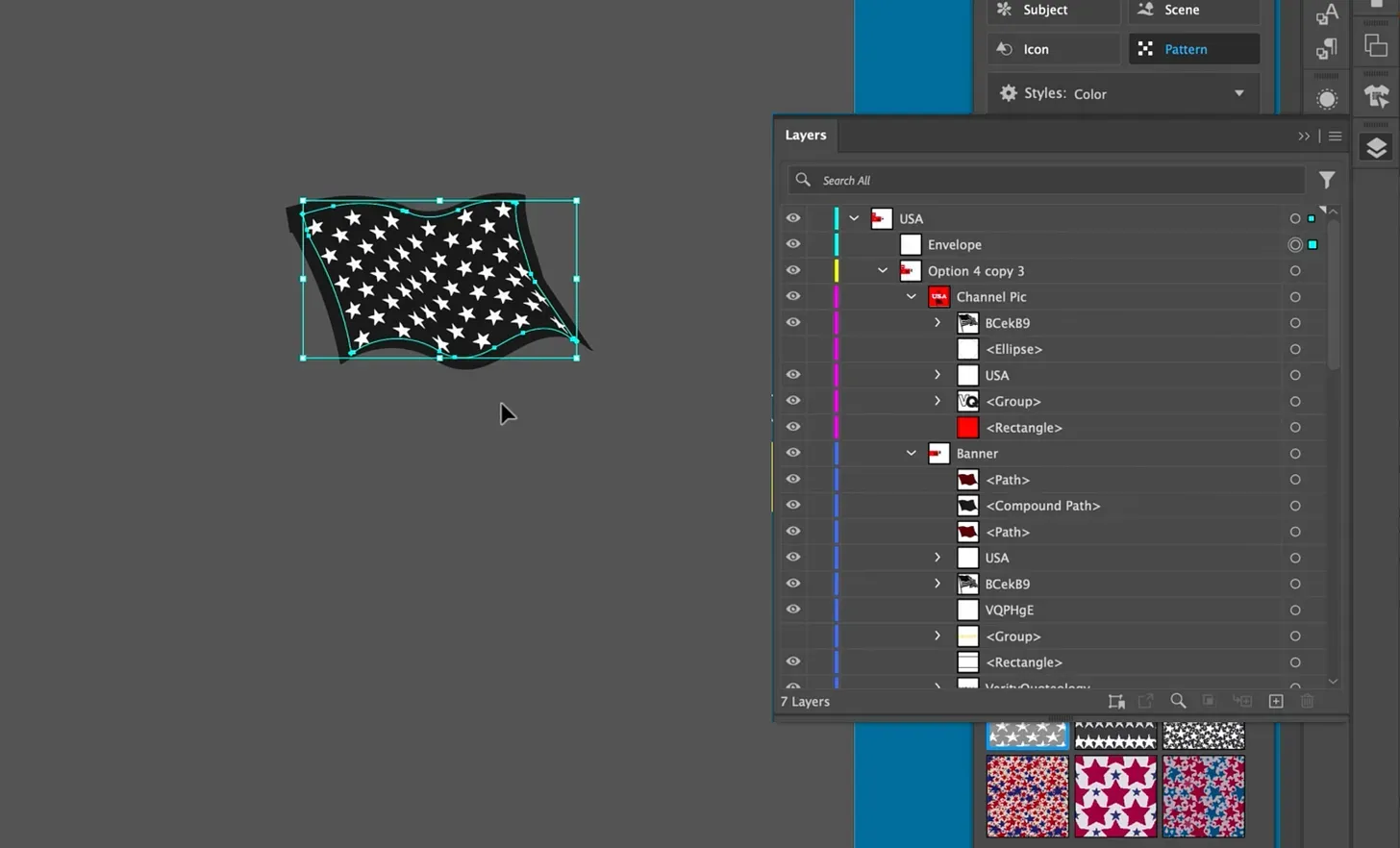
This process ensures that the stars are accurately placed and styled and conform to the flag’s shape.
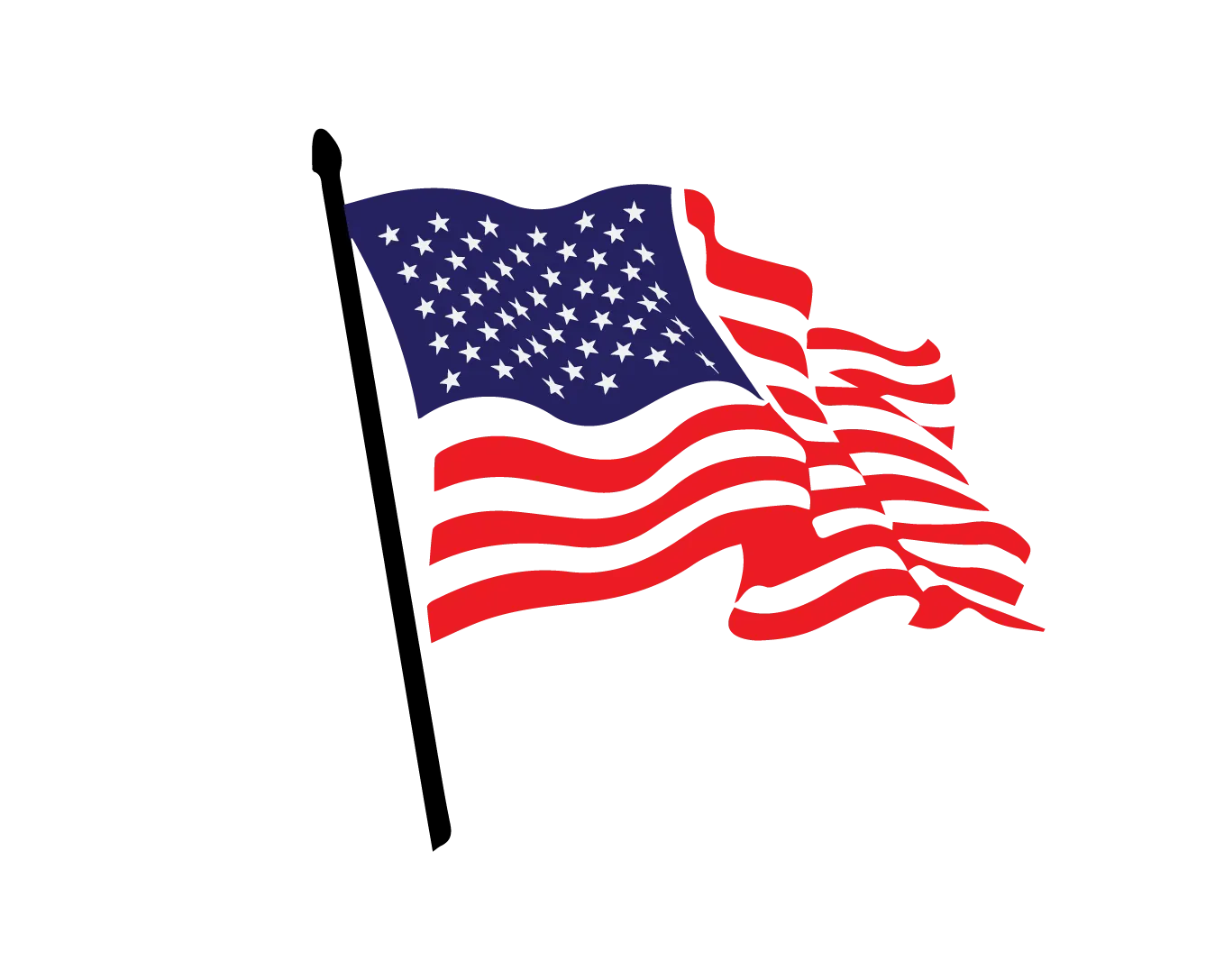
Adjusting AI-generated graphics, particularly for precise designs like the American flag, requires a bit of manual tweaking.
By following these steps, you can refine your flag to ensure accuracy and visual appeal. This process not only enhances the flag’s authenticity but also hones your skills in using Adobe Illustrator.
Happy fixing!
What are your favorite tips for fixing AI images? I'd love to hear from you — email me.


All work © Jayna Bergerson unless otherwise noted.